Rochester University Health Insurance Waiver Application Tutorial
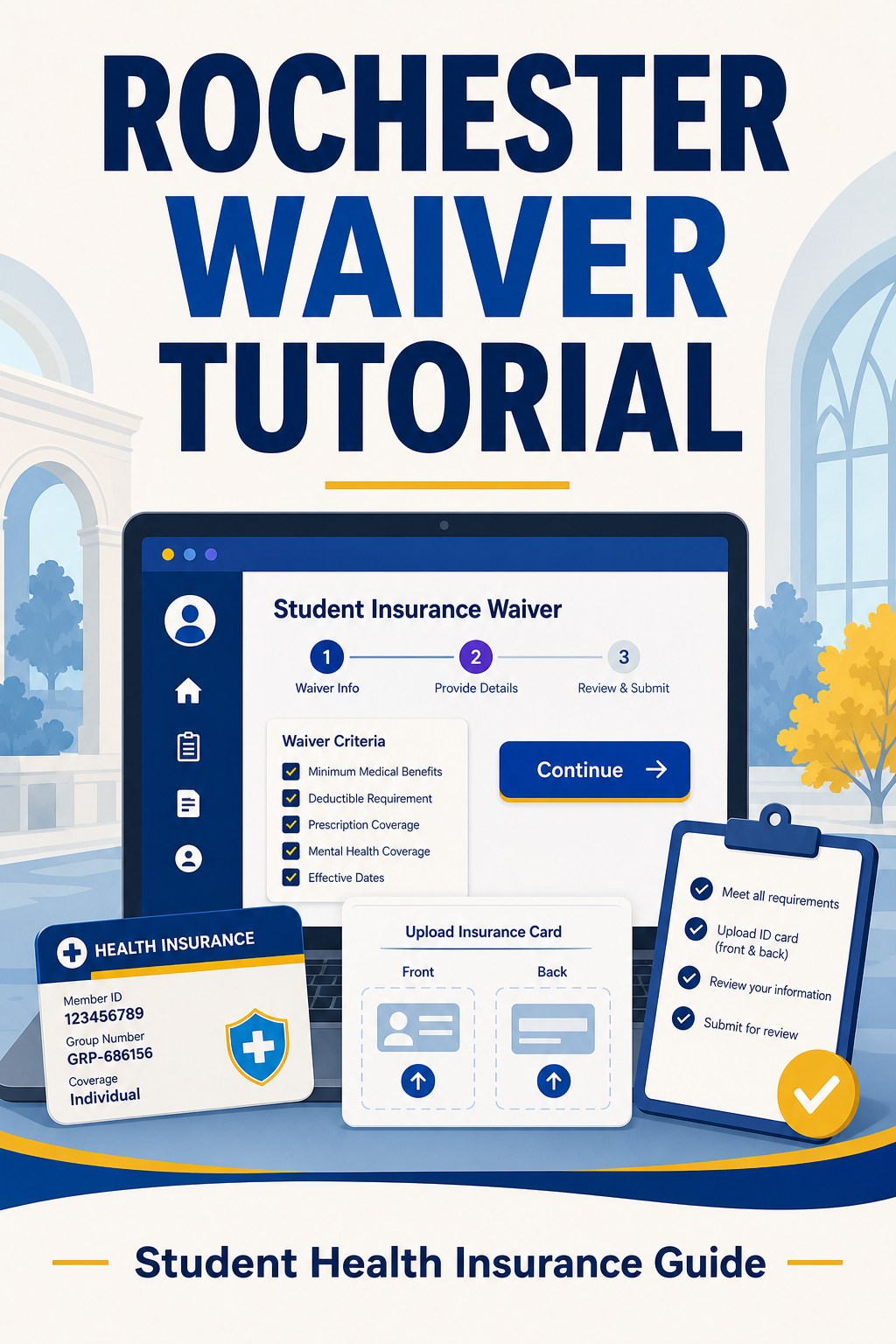
Rochester Health Insurance Waiver Application Tutorial
Step 1: Log in to the Waiver Submission Page
Open the official school link below:
https://students.aetnastudenthealth.com/welcome.aspx?groupid=686156
Enter your ID and password to log in.

Step 2: Fill Out the Form and Upload Your Insurance Card
Follow the instructions on the waiver form to complete your submission.


Required documents:
- Front and back screenshots of your insurance ID card
- Make sure the screenshots are clear. We recommend enlarging the card before taking the screenshot to ensure it is readable.
Step 3: Submit Your Application and Wait for Review
Click “Proceed” or “Submit” to submit your waiver application.
Once approved, you will receive an email notification from the school.
If you have not paid tuition yet, the school insurance fee will be automatically removed from your bill.
If you have already paid, the fee will be refunded to your student account. You can either withdraw the amount to your bank account or leave it for other university-related charges, such as course fees or miscellaneous fees.